HDR color grading · Worked example
Adjust color and contrast in HDR video.
Refine the color of HDR footage while preserving bright details. Follow a Tesseract workflow for grading, previewing, and delivering HDR and SDR versions.
Read the prompt
Set up Tesseract by Mirage so you can create editable designs, edit videos, and make motion graphics in this agent’s environment. Read https://github.com/mirage-hq/Tesseract and check the requirements for this local or hosted environment. If it is supported, follow the official plugin or skills installation guide, use its required runtime version, verify the download checksum, and confirm a short preview renders correctly. Then ask what I want to make and which brand references or source assets I have. Keep the editable project and source assets with the finished render.
About this example
Footage generated with Seedance 2.5 and converted from SDR to HDR with Topaz. Tesseract grading adjusts warmth, contrast, shadows, and highlights. This is converted footage, not native HDR capture. The HDR master is encoded from native 16-bit PQ Tesseract frames.
The embedded player shows an SDR version. Review the HDR master on a compatible display and player to see the highlight range.
The example
A warm grade for a desert sunset.
Compare the converted HDR source with a warmer primary grade, stronger contrast, and adjusted highlights. The color controls remain editable, and the HDR master and SDR preview can be reviewed separately.
- 01HDR source
- 02Color treatment
- 03HDR + SDR delivery
Two viewing versions
Check both HDR and SDR exports.
An HDR grade can look different when converted to SDR. Review each exported file on the display it is intended for.
For compatible playback
Check the PQ or HLG export on an HDR display with a supported player. Look at highlights, saturation, and comfortable text brightness.
For everyday previews
Check the separate viewing copy on a standard display. Keep useful highlight detail, readable graphics, and a balanced overall image.
The workflow
Follow these steps with your agent.
Review the preview at each stage before asking your agent to continue.
- 01
Confirm what the source contains.
Ask the agent to inspect the transfer characteristics and color primaries. Keep track of whether the footage is native HDR, camera log, or an SDR-to-HDR conversion.
- 02
Define a look and an output.
Describe the palette and tonal contrast. Choose the SDR or HDR viewing transform appropriate for delivery so the grade is judged through the intended output.
- 03
Refine color without flattening the highlights.
Use targeted corrections when only part of the image needs to change. Compare clouds, reflections, and other bright areas against the starting image as you revise.
- 04
Review HDR and SDR separately.
Watch the HDR master on a compatible display and inspect the SDR version on an ordinary screen. Check skin, text, saturation, and highlight detail in both.
Try this workflow
Copy this prompt to your agent.
Attach your footage, project, and relevant references. Replace the bracketed details and keep the first render as a draft for review.
Install or update TesseractStart the project
Color grade the attached HDR clip in Tesseract. Inspect its source color metadata. Use the supplied source history to identify native HDR or converted footage; ask if that history is missing. Create a [describe the look] treatment while retaining useful detail in bright areas. Use a supported ACES workflow where appropriate and choose the output transform deliberately. Show the source and proposed grade at the same frames. Keep any typography and logos outside the footage grade. Review the moving sequence, then export a PQ HDR master and a separately reviewed SDR version. Preserve all grading settings in the editable project.
Check these details before export.
Tell your agent what looks wrong and what to keep. Use the follow-up below as an example.
Highlight separation
Look for detail within bright clouds, reflections, and lighting. Raising the overall brightness is not the same as preserving those differences.
Saturation and gradients
Watch highly saturated highlights and subtle gradients. Check the result after the actual output transform, not only in the working image.
HDR and SDR playback
Compare the HDR master and SDR copy. A treatment that looks balanced on one can need a separate review on the other.
Example follow-up
Keep the warmer landscape. The brightest sky now looks flat, and the shadows have become too orange. Restore separation in those areas without lifting the whole image or changing the approved text.
HDR questions and answers
What does HDR change in a video?
HDR gives a video more room for bright highlights and a wider range of colors. On a compatible display, reflections, light sources, and luminous graphics can look brighter while the rest of the image stays balanced. The result depends on the source, creative treatment, export, and playback device.
Does Tesseract support ACES?
Tesseract includes an ACES color workflow with supported camera input transforms, ACEScct grading, and ACES output transforms for SDR and HDR. It does not load arbitrary OpenColorIO configurations. Confirm that your source color space and intended output are supported before grading.
Does the example on this page play in HDR?
The embedded video is an SDR preview for consistent browser playback. Use the HDR master link where available to review the HDR export in a compatible player on an HDR display. A brighter-looking preview is not proof of HDR playback.
Which HDR formats can Tesseract export?
The HDR video workflow exports 10-bit HEVC MP4 with PQ or HLG transfer characteristics. Choose the format for your delivery platform and check its current requirements. This is not Dolby Vision mastering or an HDR ProRes export workflow.
Does converting SDR footage to HDR recover the original highlights?
No. SDR-to-HDR conversion creates an expanded interpretation of the source. It cannot recover detail that was already clipped or discarded. Native HDR capture and converted SDR footage should be labeled differently, and both should be reviewed before delivery.
Related examples and guides.
See how to apply these tools to other video projects.
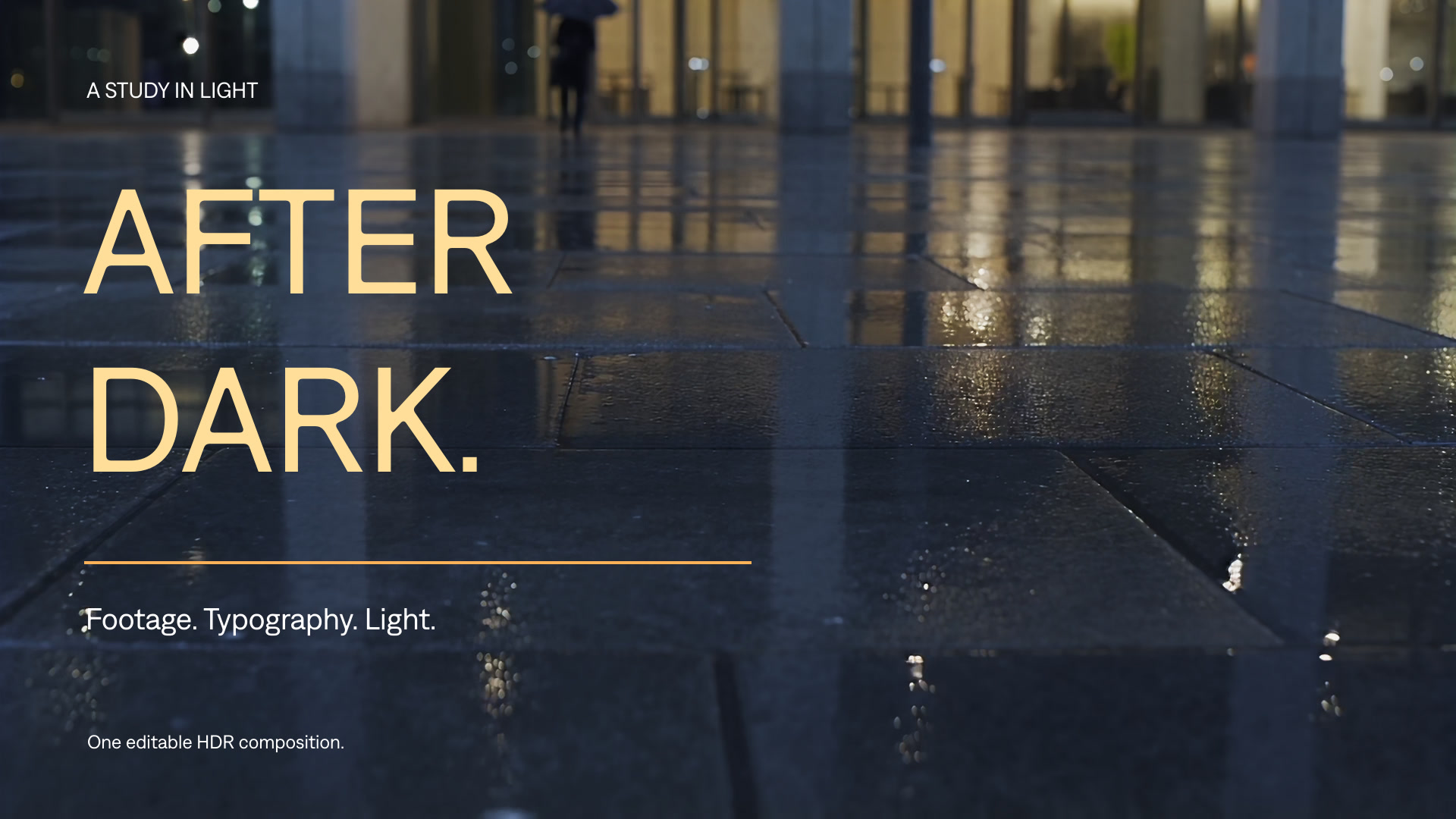
HDR video and motion graphics
Combine HDR footage with editable typography, animated graphics, and effects. Create and refine an HDR video with your AI agent and Tesseract.
Explore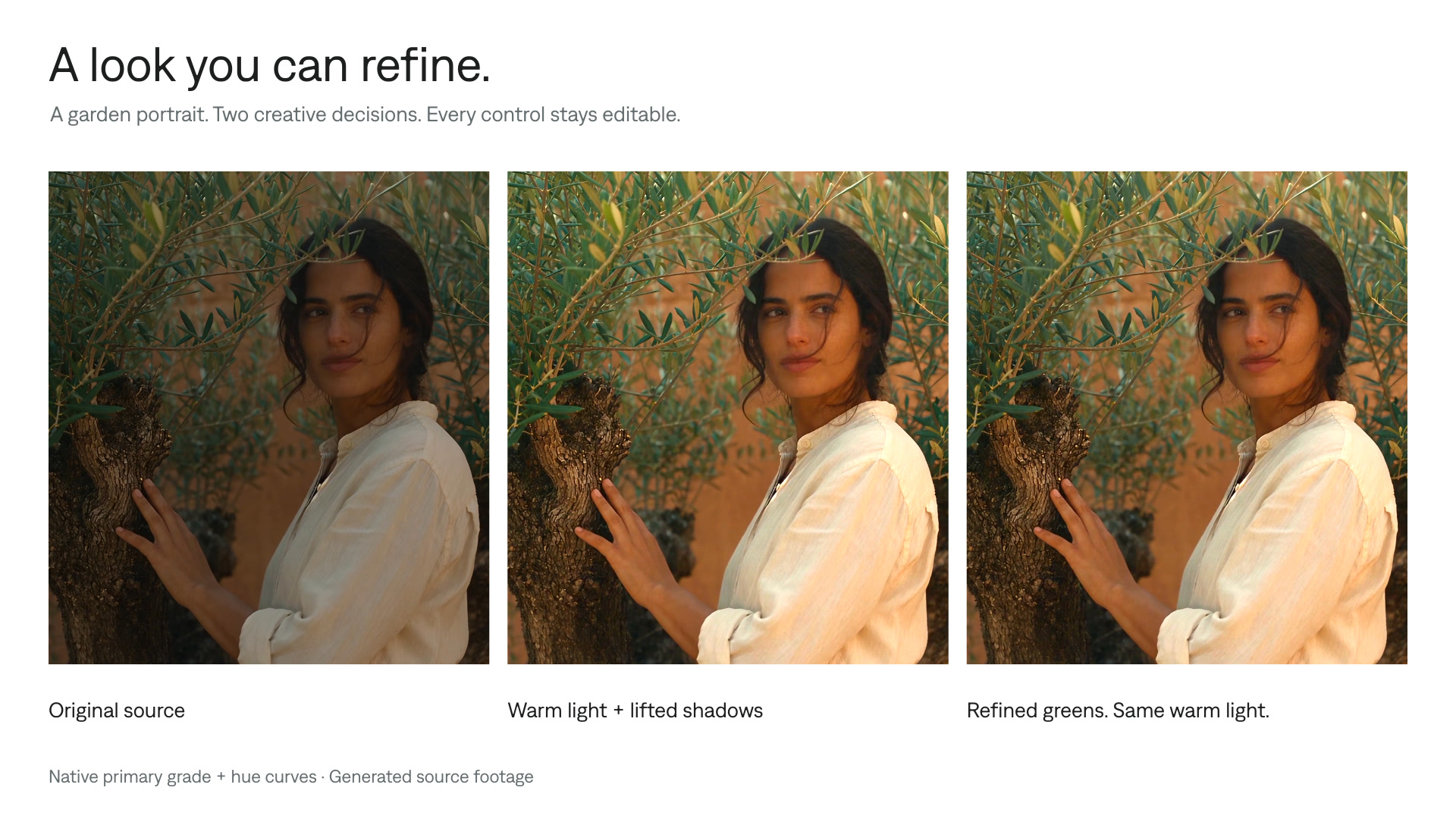
Color grading
Color grade videos with your AI agent. Work with supported camera log footage, ACES, 3D LUTs, curves, selective corrections, and HDR in editable Tesseract projects.
Explore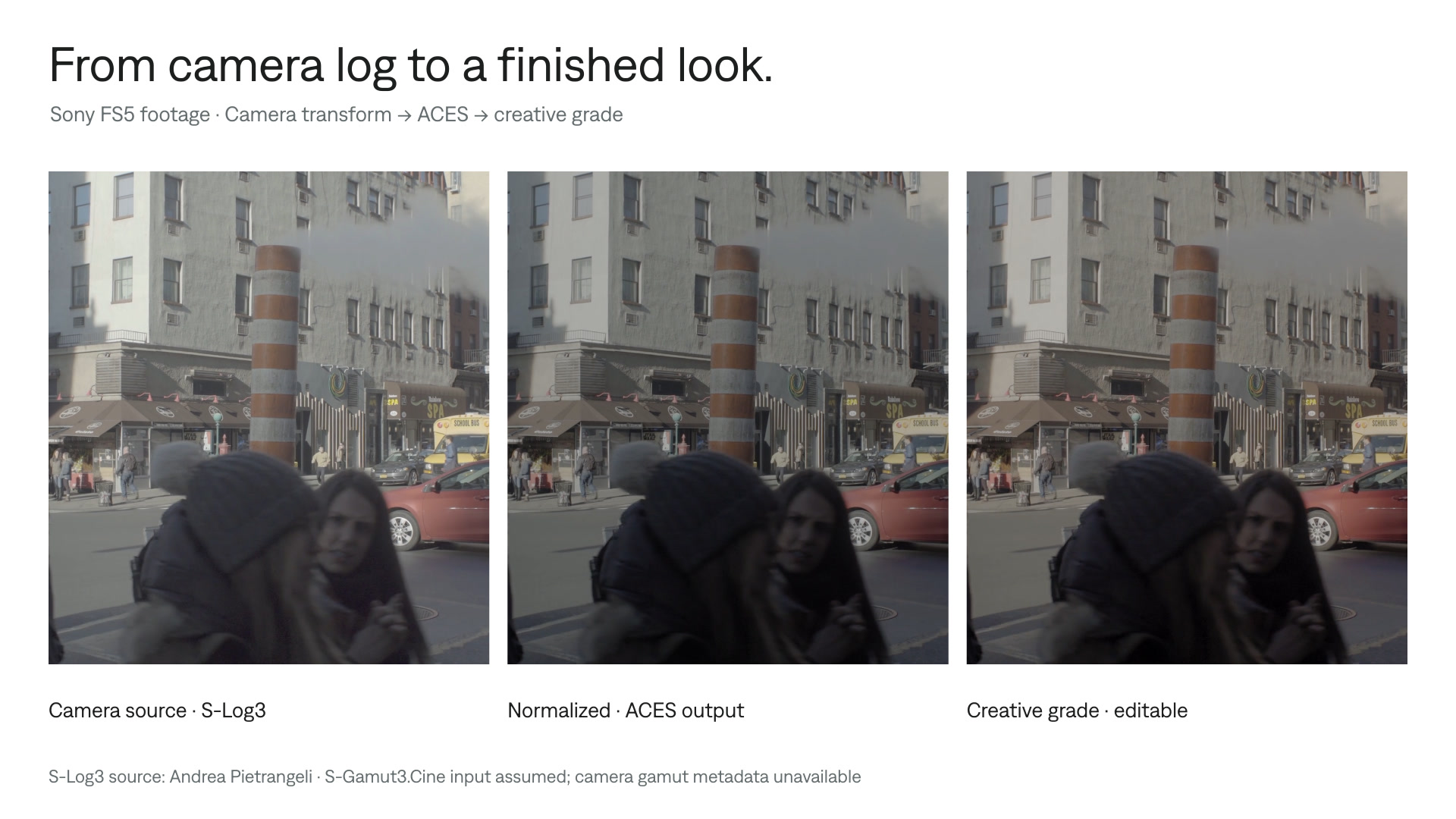
Color grade camera log footage
Bring supported camera log footage to your agent. Normalize the input, create a look, and refine the grade in an editable Tesseract project.
Explore