Camera log grading · Worked example
Color grade camera log footage with your agent.
Bring supported camera log footage to your agent. Normalize the input, create a look, and refine the grade in an editable Tesseract project.
Read the prompt
Set up Tesseract by Mirage so you can create editable designs, edit videos, and make motion graphics in this agent’s environment. Read https://github.com/mirage-hq/Tesseract and check the requirements for this local or hosted environment. If it is supported, follow the official plugin or skills installation guide, use its required runtime version, verify the download checksum, and confirm a short preview renders correctly. Then ask what I want to make and which brand references or source assets I have. Keep the editable project and source assets with the finished render.
About this example
Original Sony FS5 footage by Andrea Pietrangeli, provided for stock use. This excerpt was resized and compressed without a color conversion. The source is identified as S-Log3; S-Gamut3.Cine is an explicit working assumption because the camera gamut was not recorded in the supplied metadata. Confirm the correct profile for your own footage.
The example
Separate the camera conversion from the creative grade.
Compare genuine Sony FS5 S-Log3 footage, an ACES-normalized starting point, and a creative grade. This example assumes S-Gamut3.Cine because the source gamut is missing from the supplied metadata; confirm the exact profile for your own footage.
- 01Camera log
- 02Normalized
- 03Creative look
Camera input → Creative grade → Output
Start with the camera profile.
Choose the input transform for the footage’s log curve and color gamut. Apply creative adjustments after that conversion so you can revise them separately.
Use the exact supported curve and gamut. See the FAQ for input details.
The workflow
Follow these steps with your agent.
Review the preview at each stage before asking your agent to continue.
- 01
Identify the camera profile.
Provide the original clip, camera, and recording profile. Log describes a family of encodings, not one universal color space. If metadata is incomplete, supply the profile rather than asking the agent to guess.
- 02
Normalize the input once.
Use the supported camera transform, or a suitable technical LUT when needed. Review exposure and white balance before building a look. Avoid applying a second log-to-display conversion on top.
- 03
Add the creative treatment.
Describe the palette and contrast or attach a reference. Review representative frames with faces, neutral areas, and highlights. Adjust the look with grading controls rather than baking it into the source file.
- 04
Review every shot and export.
A shared look does not correct every lighting difference. Check the complete sequence and ask for individual revisions before choosing an SDR or HDR output.
Try this workflow
Copy this prompt to your agent.
Attach your footage, project, and relevant references. Replace the bracketed details and keep the first render as a draft for review.
Install or update TesseractStart the project
Grade the attached original camera footage in Tesseract. It was recorded on [camera] in [log curve and color gamut]. First confirm that this input is supported and identify the correct camera transform. Do not apply both a camera transform and a second log-to-display LUT. Show the untouched log frame, the normalized image, and a proposed [describe look] grade side by side. Check skin tones, white balance, and highlights. Keep the technical conversion and creative grade separately editable. Review a draft of the full clip, then export for [SDR/HDR destination] and save the Tesseract project.
Check these details before export.
Tell your agent what looks wrong and what to keep. Use the follow-up below as an example.
The correct input
Check both the log curve and the camera gamut. The file extension or a flat-looking image does not identify either reliably.
A single normalization
If the image looks unusually harsh or oversaturated, inspect the input transform and any technical LUT for a double conversion.
The actual source limits
A grade cannot restore clipped highlights or detail lost in the camera recording. Evaluate the source before trying to correct the look.
Example follow-up
Keep the creative palette. The face is too warm, and the highlights have lost detail compared with the normalized image. Correct those differences while preserving the framing, timing, and the rest of the look.
Color grading questions and answers
Which camera log profiles are supported?
Built-in camera input transforms include Apple Log, ARRI LogC3 EI800 and LogC4, Blackmagic Film Gen 5, Canon Log 3 with Cinema Gamut, Panasonic V-Log, RED Log3G10, and Sony S-Log3 with S-Gamut3 or S-Gamut3.Cine. Supply the exact profile and check the installed runtime’s current documentation.
Can Tesseract automatically identify any log footage?
No. Supported Apple Log metadata can help identify that input, but other camera profiles need to be declared. Ask the agent to report missing source information rather than choose a transform from the image’s appearance.
Can I use a camera manufacturer’s LUT?
You can use a supported 3D .cube LUT when its expected input and output match the workflow. State whether it performs a technical conversion or adds a creative look. Check any license and avoid applying the same technical conversion twice.
Does Tesseract support ACES?
Tesseract includes an ACES color workflow with supported camera input transforms, ACEScct grading, and ACES output transforms for SDR and HDR. It does not load arbitrary OpenColorIO configurations. Confirm that your source color space and intended output are supported before grading.
Related examples and guides.
See how to apply these tools to other video projects.
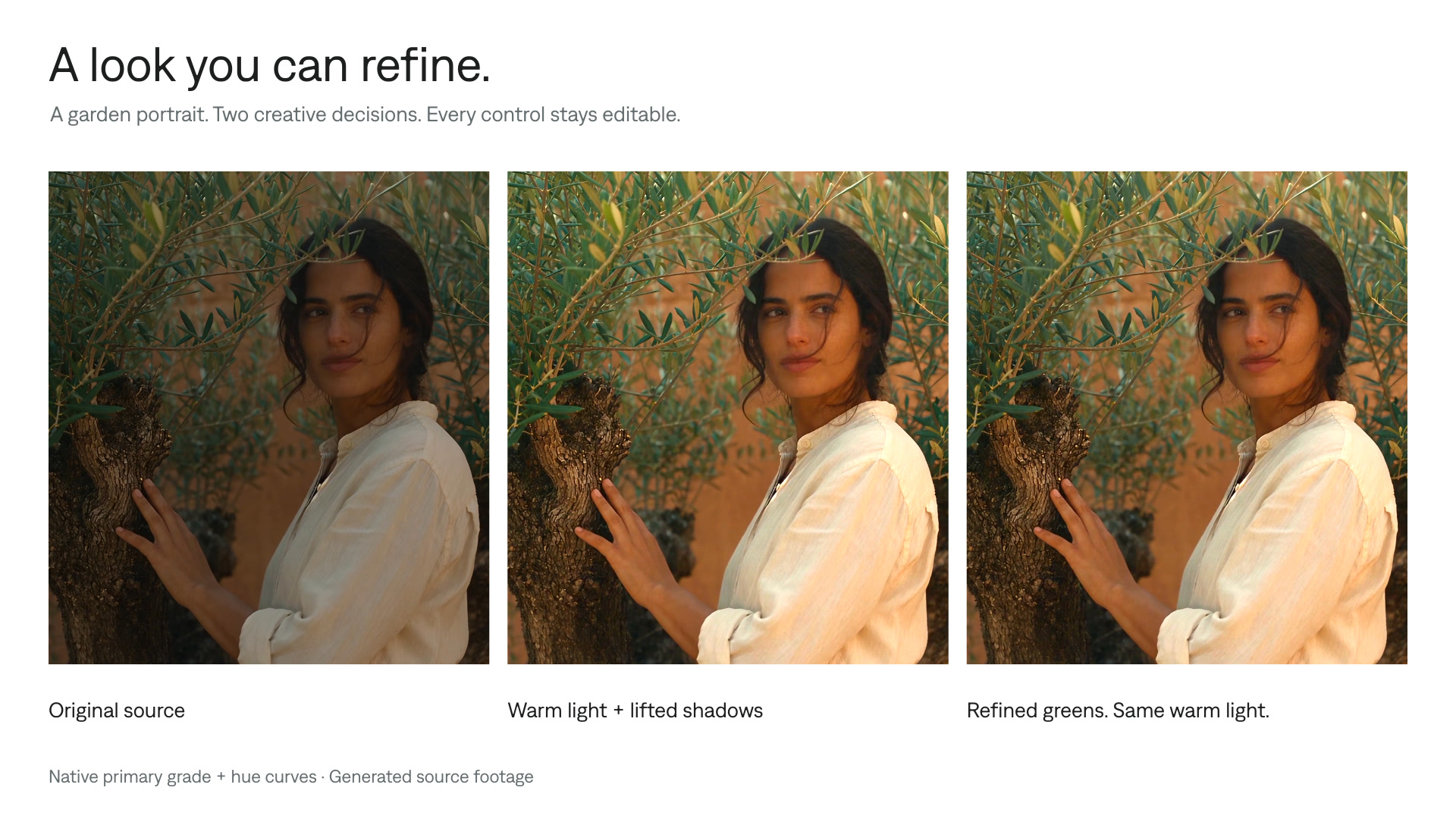
Color grading
Color grade videos with your AI agent. Work with supported camera log footage, ACES, 3D LUTs, curves, selective corrections, and HDR in editable Tesseract projects.
Explore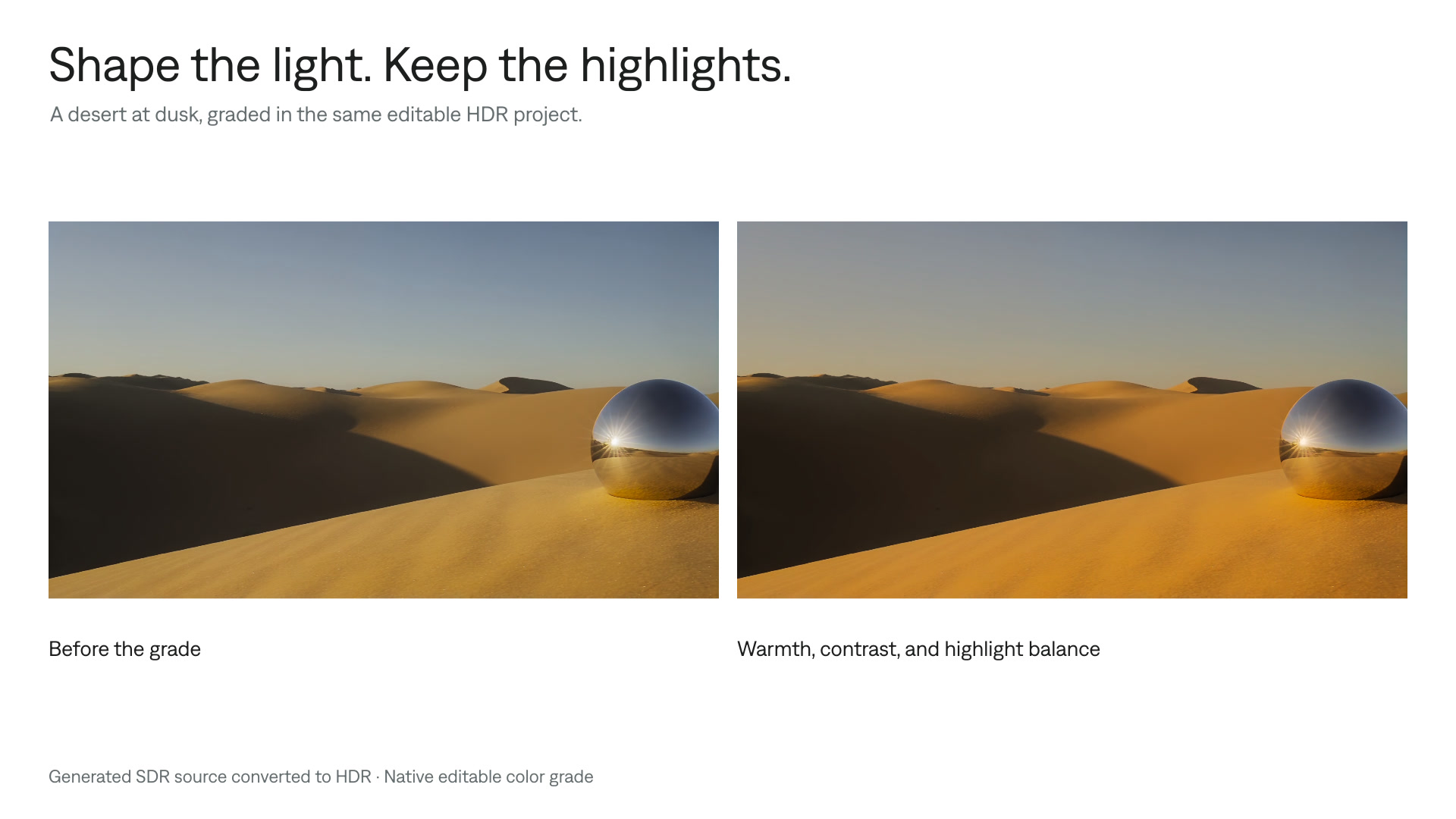
Color grade HDR video
Refine the color of HDR footage while preserving bright details. Follow a Tesseract workflow for grading, previewing, and delivering HDR and SDR versions.
Explore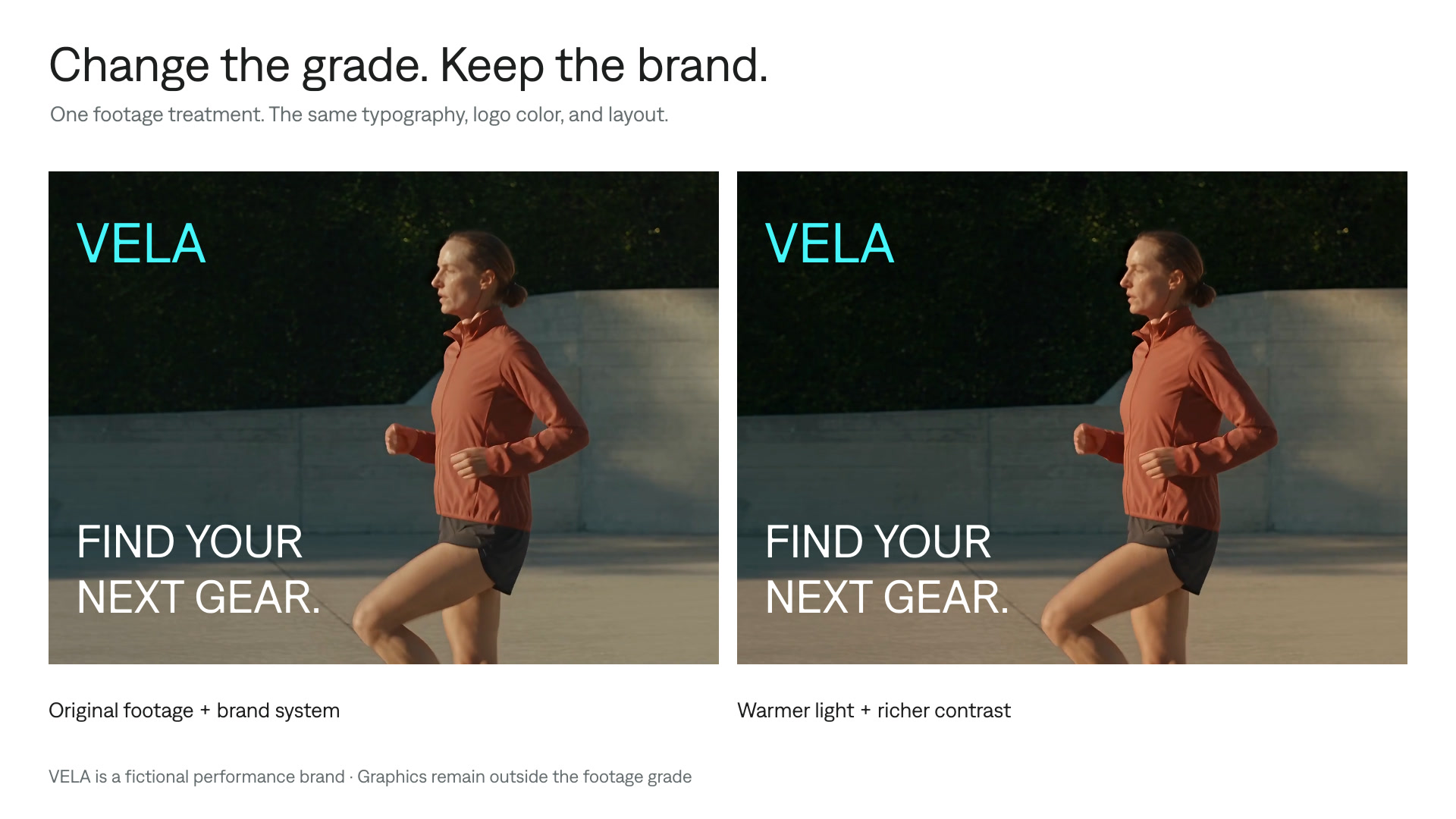
Grade footage, preserve brand colors
Give an ad or social video a new look while preserving approved logos, captions, and graphics. Apply a footage-only grade in an editable Tesseract project.
Explore