Color grading for ads · Worked example
Color grade footage without changing your graphics.
Give an ad or social video a new look while preserving approved logos, captions, and graphics. Apply a footage-only grade in an editable Tesseract project.
Read the prompt
Set up Tesseract by Mirage so you can create editable designs and 3D scenes, edit videos, and make motion graphics in this agent’s environment. Read https://github.com/mirage-hq/Tesseract and check the requirements for this local or hosted environment. If it is supported, follow the official plugin or skills installation guide, use its required runtime version, verify the download checksum, and confirm a short preview renders correctly. Then ask what I want to make and which brand references or source assets I have. Keep the editable project and source assets with the finished render.
About this example
VELA is a fictional performance brand. Footage generated with Seedance 2.5. Tesseract grades only the footage; the editable logo and text stay on separate, unchanged layers.
The example
Warmer footage with unchanged logo and text colors.
Compare the original and graded footage in this VELA running ad. The warmer grade changes the footage while the fictional brand’s cyan logo and white text remain unchanged on separate layers.
- 01Graded footage
- 02Unchanged graphic colors
- 03Editable layers
Choose what the grade affects
Keep logos and text
outside the footage grade.
A footage-only grade changes the scene without applying the same treatment to your logo and typography. Products filmed inside the scene still need their own review.
Separate layers retain their approved colors.
Apply the creative look to the scene.
The workflow
Follow these steps with your agent.
Review the preview at each stage before asking your agent to continue.
- 01
Bring the editable project and brand guide.
Share the footage, logos, fonts, and approved color values. Identify the visual elements that should remain unchanged, including lower thirds, product interfaces, and end cards.
- 02
Apply the look to the footage.
Keep the graphics on separate layers and scope the grade to the video. If several shots need different corrections, apply those before checking the overall campaign look.
- 03
Compare the protected elements.
Review a before-and-after frame containing both footage and graphics. Check that the approved logo and text colors are preserved while the image treatment changes.
- 04
Revise the campaign in the same project.
Change the grade, headline, or placement independently. Preview each delivery format and keep the approved layers for the next revision.
Try this workflow
Copy this prompt to your agent.
Attach your footage, project, and relevant references. Replace the bracketed details and keep the first render as a draft for review.
Install or update TesseractStart the project
Use this editable Tesseract project and brand guide to color grade the footage for [campaign]. Give the scene a [describe look] treatment. Keep our logo, typography, UI overlays, and graphic colors unchanged by the footage grade. Apply the corrections to the footage layers rather than the final composite. Show a before-and-after frame with both footage and brand graphics visible, then a draft of the full edit. Check for unwanted changes to skin tones and known product colors within the footage. Preserve the original project and save the revised version with its editable layers.
Check these details before export.
Tell your agent what looks wrong and what to keep. Use the follow-up below as an example.
Graphics stay outside the grade
Check the logo, type, and UI overlays before and after the correction. Confirm the grade is applied at the footage level.
Products inside the image
A product filmed in the scene is part of the footage. Protecting a separate logo layer does not automatically protect the product’s color.
Consistent delivery
Review the exported result. Display settings, output transforms, and platform processing can affect how brand colors appear.
Example follow-up
Keep the approved graphics, font colors, and edit. The footage is too green in the shadows, and the product in the shot looks different from the reference. Correct the footage only and show the same comparison frame again.
Color grading questions and answers
Can I protect a logo already burned into a video?
Not by excluding a separate layer: the logo is already part of the footage. A mask or other selective correction may help, but it needs careful review. The cleanest workflow uses the original footage and a separate editable logo layer.
Does a footage-only grade preserve a product’s color in the shot?
Not automatically. The product is part of the footage and is affected by the grade. Ask for a selective correction and compare it against an approved reference, watching the full clip for spill and changing lighting.
Will grading change my captions, logo, or graphics?
It depends on where the grade is applied. Keep brand graphics on separate layers and ask for a footage-only grade. Your agent can also apply a treatment to a selected group or the whole composition when that is the intended result.
Can I reuse the grade across a campaign?
You can reuse an approved treatment in other editable projects. Inspect each new source and correct differences in exposure, lighting, and camera profile before treating the look as approved.
Related examples and guides.
See how to apply these tools to other video projects.
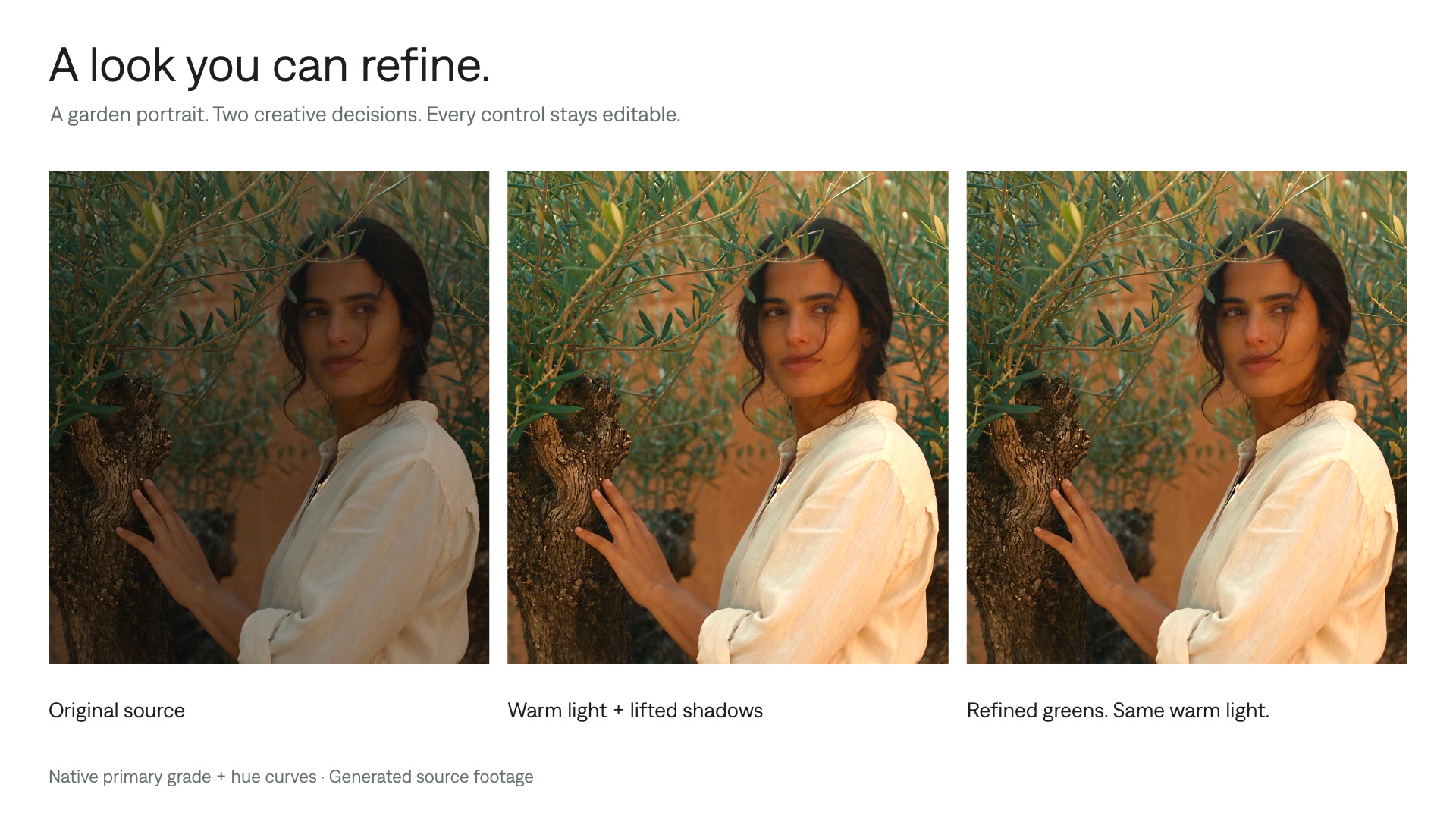
Color grading
Color grade videos with your AI agent. Work with supported camera log footage, ACES, 3D LUTs, curves, selective corrections, and HDR in editable Tesseract projects.
Explore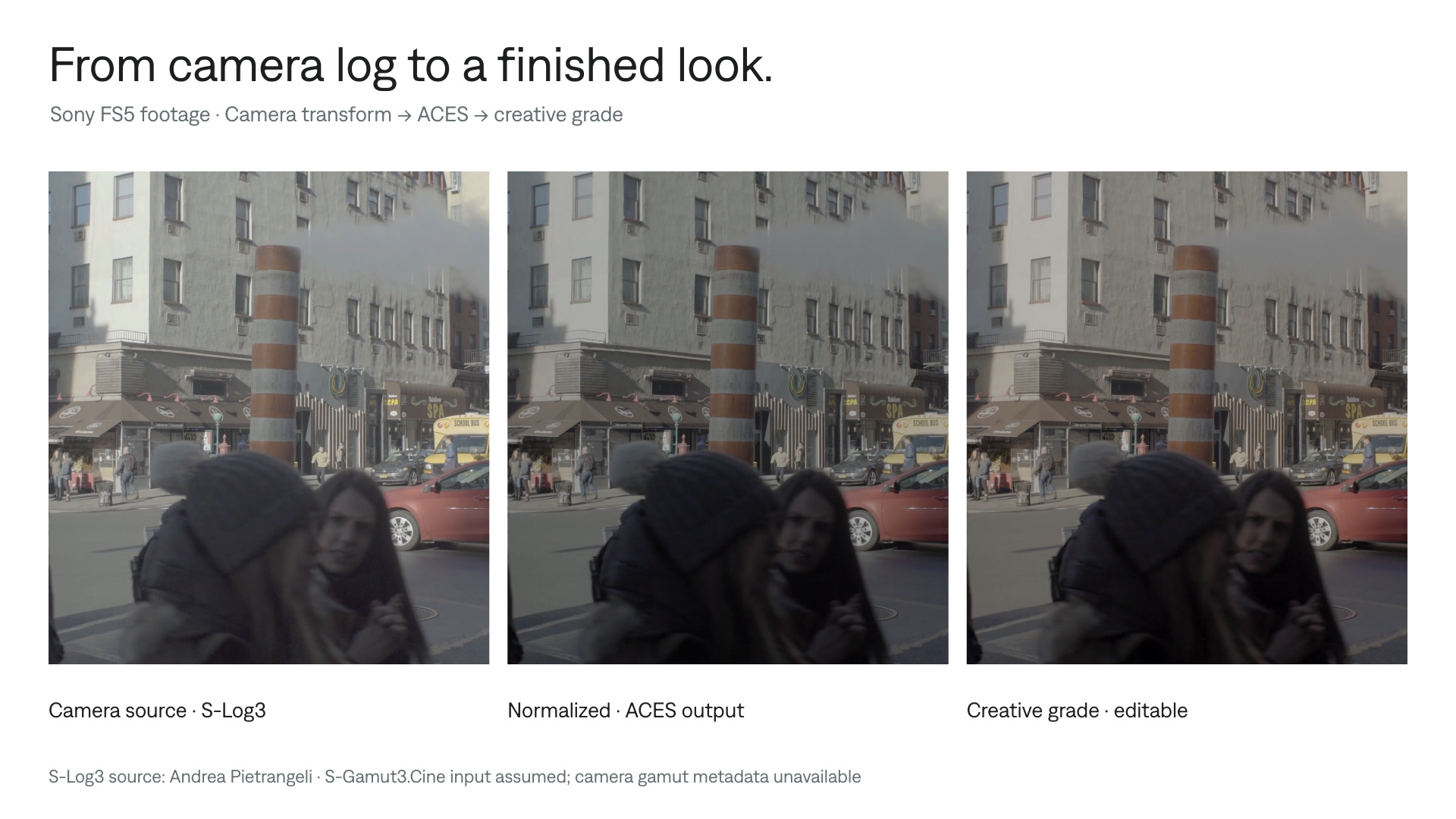
Color grade camera log footage
Bring supported camera log footage to your agent. Normalize the input, create a look, and refine the grade in an editable Tesseract project.
Explore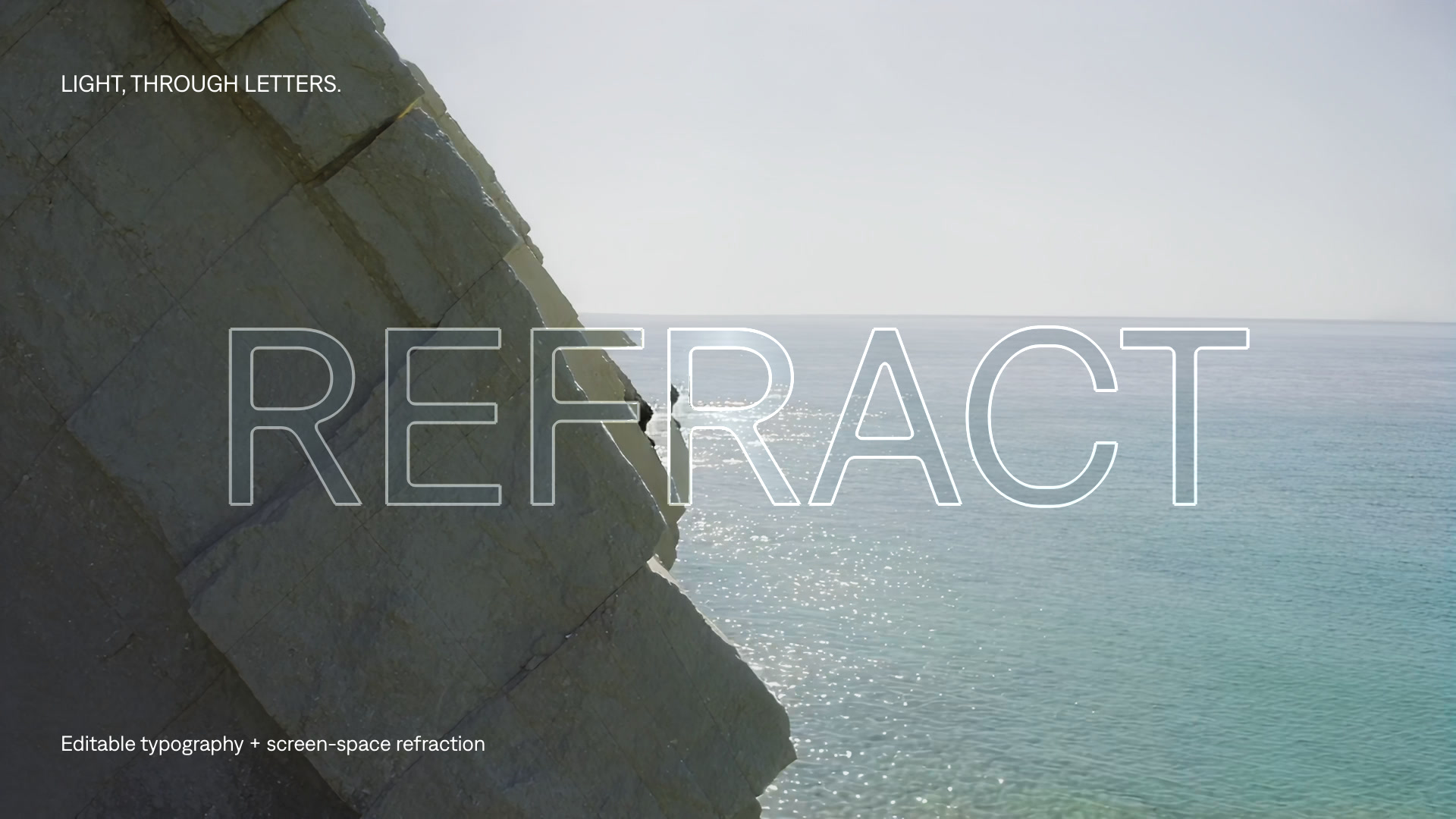
Make HDR motion graphics
Build animated typography and effects over HDR footage with your AI agent. Follow an editable Tesseract example and copy a practical prompt.
Explore