Adjust individual color families.
Use selective color controls to adjust reds, blues, neutrals, and other color families. Change red fabric, cool a neutral backdrop, or adjust the darkest tones.
Sample footage generated with Seedance 2.5. The demonstrated correction is applied with native Tesseract controls.
Try it in your agent.
Use this prompt as a starting point. Review the result, then ask for the details you want to change.
A prompt to start from
Use Tesseract’s selective color controls on this still life. Make the magenta silk richer while preserving the amber sphere, green glass, and neutral backdrop. Show me the original and the revised image side by side. Leave the magenta-range correction editable so I can refine it after the preview.
New to Tesseract? Find the setup for your agent.
Keep control of the result.
- Nine color families
- Target reds, yellows, greens, cyans, blues, magentas, whites, neutrals, or blacks.
- Color balance within a range
- Adjust cyan, magenta, yellow, and black-style controls for the selected family.
- Relative or absolute correction
- Choose how strongly each adjustment responds to the source color.
A few useful details.
How is selective color different from hue curves?
Hue curves describe a change across a continuous range of hue, luminance, or saturation. Selective color organizes corrections into named color families, including whites, neutrals, and blacks.
Does this match Photoshop’s selective color exactly?
No. Tesseract offers its own implementation of these controls. Review the image directly instead of assuming identical numeric settings will produce the same pixels in another application.
Will it preserve a logo with similar colors?
Not automatically if the logo is included in the affected image. Keep brand graphics on separate layers outside the footage grade, or limit the correction with an appropriate mask.
How do I try this with my agent?
Install or update Tesseract in a supported agent, attach your source files, and copy the prompt. Review the preview, then ask for the changes you want. The composition stays editable as you refine it.
Where does the video render?
Tesseract renders in the environment where your agent runs it, including supported local computers and hosted Linux environments. The engine is free; your agent’s subscription or usage costs are separate.
Put it to work in a video.
See how this tool fits into a complete, editable project.
Try these next.
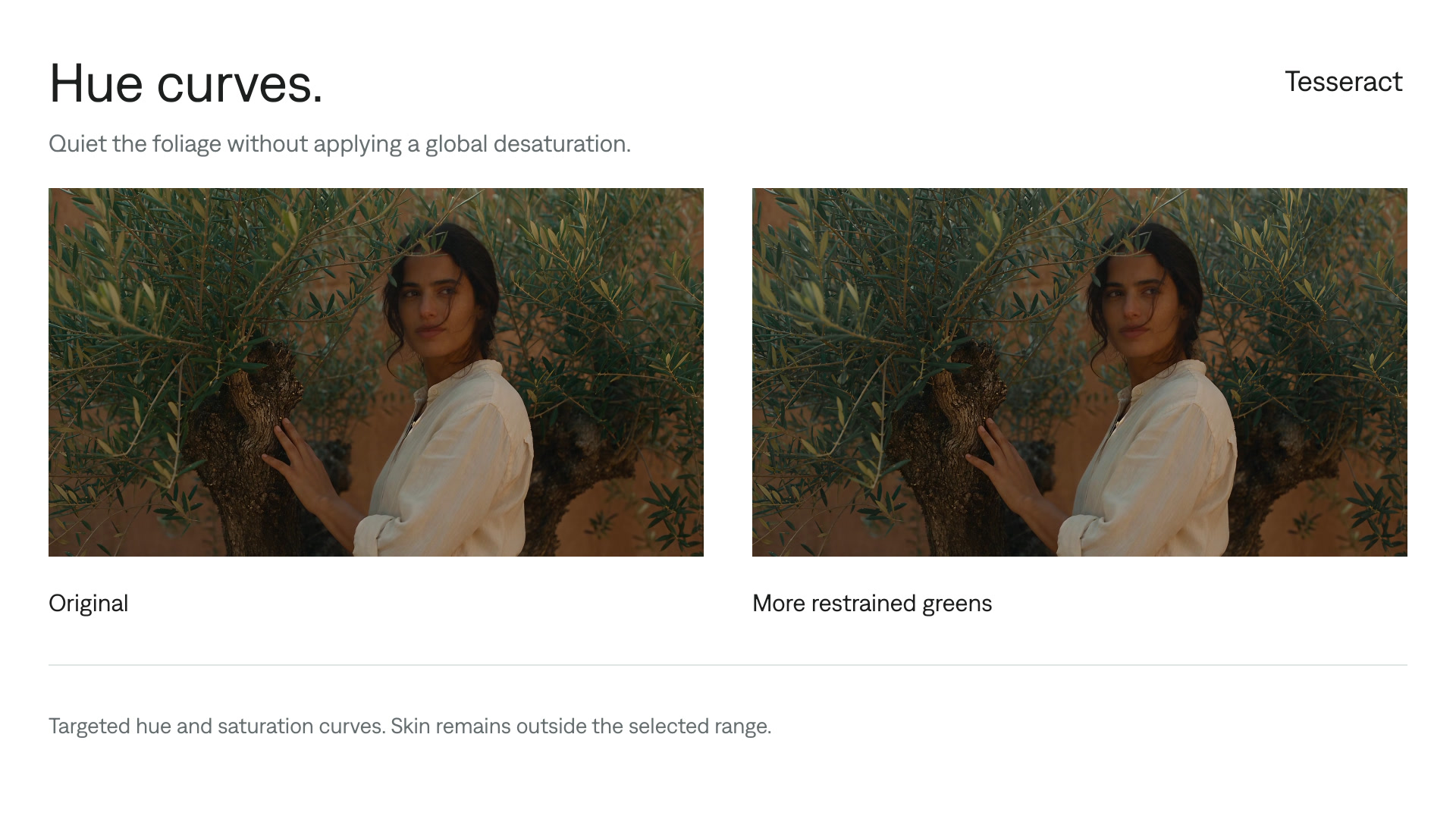
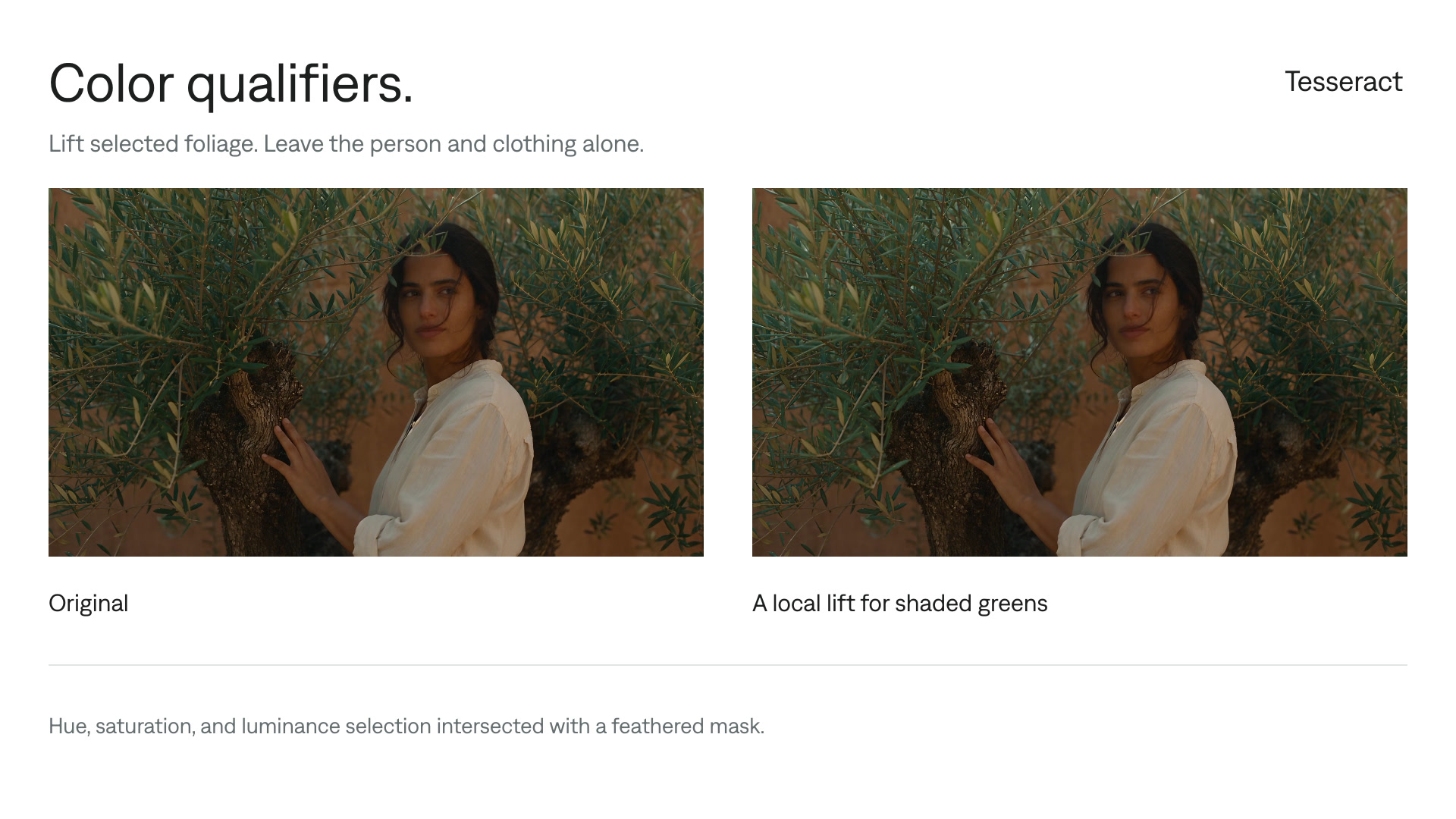
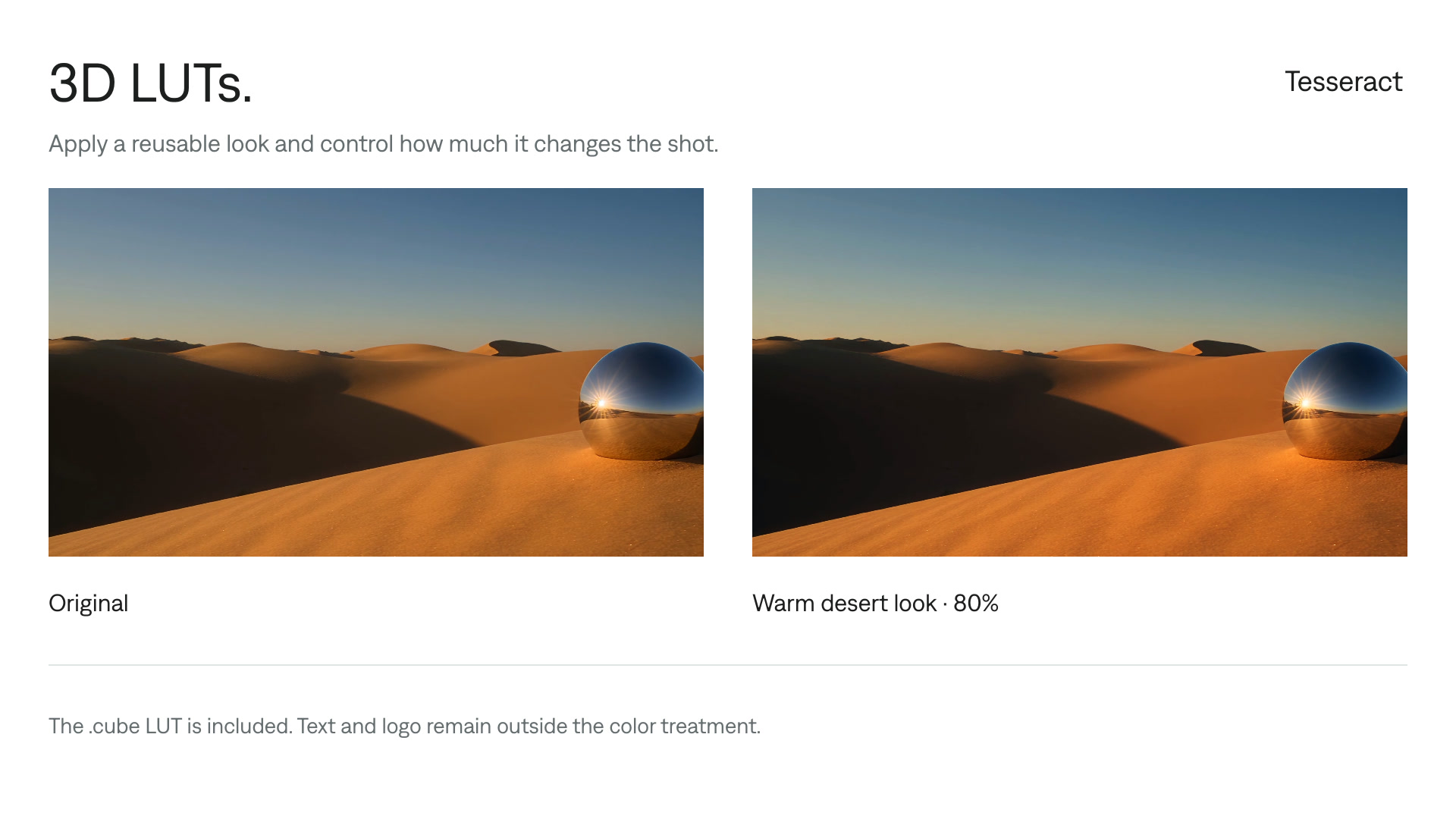
Your next video, made with your agent.
Install Tesseract in your agent, bring a brief, and start creating.
Free on Mac, Windows, and Linux. Your agent’s costs are separate.
Read the prompt
Set up Tesseract by Mirage so you can create editable designs, edit videos, and make motion graphics in this agent’s environment. Read https://github.com/mirage-hq/Tesseract and check the requirements for this local or hosted environment. If it is supported, follow the official plugin or skills installation guide, use its required runtime version, verify the download checksum, and confirm a short preview renders correctly. Then ask what I want to make and which brand references or source assets I have. Keep the editable project and source assets with the finished render.