Limit color corrections with qualifiers and masks.
Select a range of hue, saturation, and luminance, then combine it with a spatial mask. Your agent can inspect the selection and refine where the correction applies.
Sample footage generated with Seedance 2.5. The demonstrated correction is applied with native Tesseract controls.
Try it in your agent.
Use this prompt as a starting point. Review the result, then ask for the details you want to change.
A prompt to start from
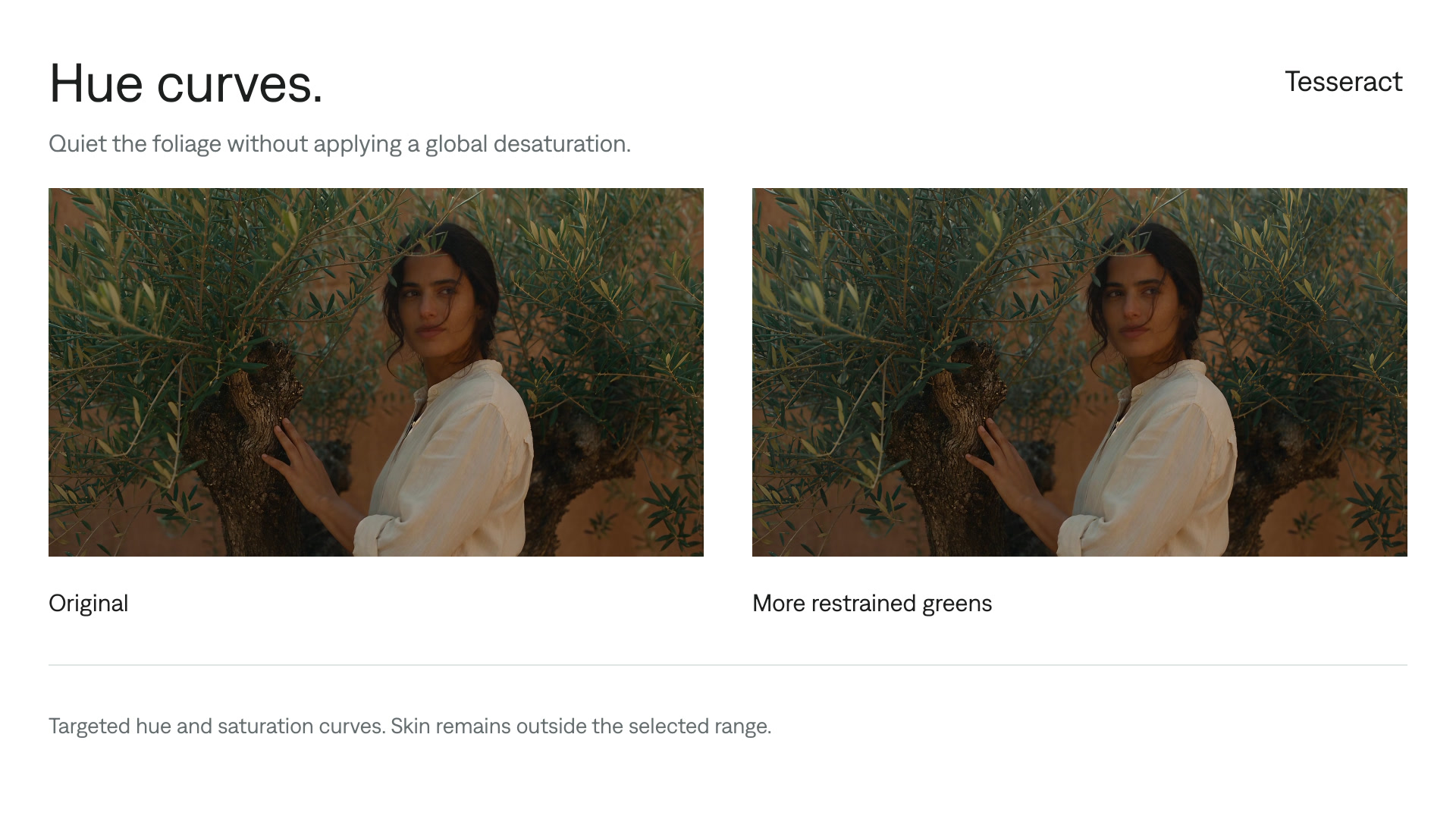
Use Tesseract to lift the shaded green foliage on the left of this garden portrait while leaving the person, clothing, and right side unchanged. Combine a color qualifier with a feathered spatial mask. Show me the original and corrected frame, inspect the boundaries for spill or missing areas, and soften any rough edges. Keep the mask and correction editable and inspect several frames before exporting.
New to Tesseract? Find the setup for your agent.
Keep control of the result.
- Color selection
- Define the hue, saturation, and luminance ranges included in the correction.
- Spatial mask
- Limit the color selection to a region of the frame.
- Selection refinement
- Refine boundaries and correction strength, then inspect the result over time.
A few useful details.
Can I combine a color qualifier and a mask?
Yes. The selection can be limited by both color and a spatial mask, so a matching color elsewhere does not have to receive the same correction.
Does the mask automatically track a moving subject?
No automatic tracking is provided by these grading controls. For moving footage, inspect the selection across frames and have your agent author or revise the mask over time as needed.
How should I check the selection?
Compare the original and corrected image at several points in the clip. Look for unwanted spill, missing areas, and hard edges before judging the overall color treatment, especially around hair, reflections, or motion.
How do I try this with my agent?
Install or update Tesseract in a supported agent, attach your source files, and copy the prompt. Review the preview, then ask for the changes you want. The composition stays editable as you refine it.
Where does the video render?
Tesseract renders in the environment where your agent runs it, including supported local computers and hosted Linux environments. The engine is free; your agent’s subscription or usage costs are separate.
Put it to work in a video.
See how this tool fits into a complete, editable project.
Try these next.
Your next video, made with your agent.
Install Tesseract in your agent, bring a brief, and start creating.
Free on Mac, Windows, and Linux. Your agent’s costs are separate.
Read the prompt
Set up Tesseract by Mirage so you can create editable designs, edit videos, and make motion graphics in this agent’s environment. Read https://github.com/mirage-hq/Tesseract and check the requirements for this local or hosted environment. If it is supported, follow the official plugin or skills installation guide, use its required runtime version, verify the download checksum, and confirm a short preview renders correctly. Then ask what I want to make and which brand references or source assets I have. Keep the editable project and source assets with the finished render.