Made with Strata
From your footage to a finished social ad.
Give your agent the footage and the brief. Direct the hook, motion graphics, and sound in plain language, then refine the result together.
Free on Apple Silicon Mac. Your agent’s costs are separate.
Read the setup prompt
Help me set up Strata by Mirage so you can edit videos and create motion graphics locally. Read the official setup guide at https://mirage.app/strata/install. Check whether my computer and this agent support the local plugin, and use only Mirage’s official release links. If the appropriate release link is not available, tell me rather than guessing an install command. Once Strata is ready, ask me for my footage or the video I want to make.
A Captions ad, edited with Strata.
Real footage. Four creative variants. Three formats.
The same footage. A different first impression.
The creator supplied Cole’s recording, brand assets, a product recording, and music. The agent assembled the edit in Strata, then refined the hook, graphics, sound, and framing through feedback.
Step 1
Start with the assets you already have.
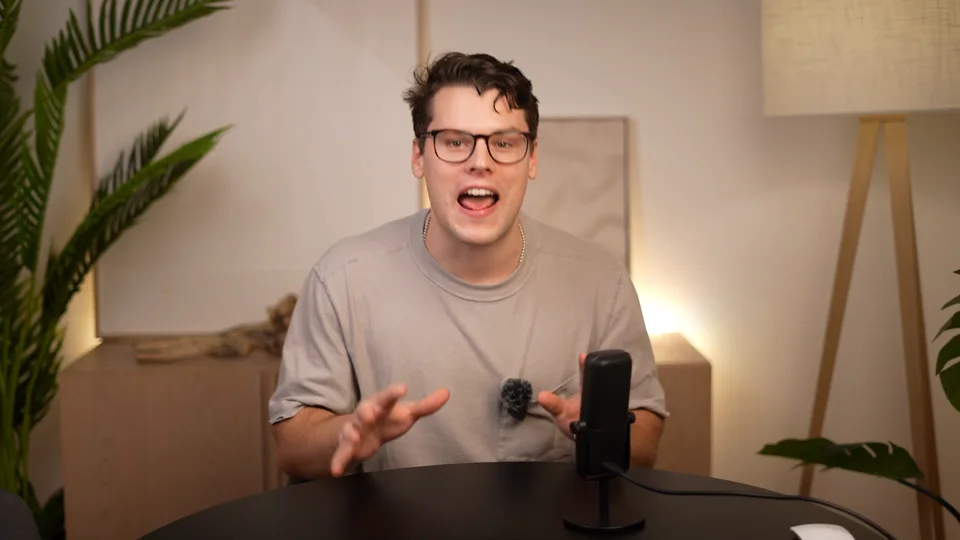
Cole’s talking-head footage, Captions brand assets, a product recording, and music gave the agent material to work with. A short brief established the audience, message, and pacing.
Creative direction
Use Strata to turn this footage into a Captions social ad. Make the opening grab attention, then show the product in action.
Step 2
Describe what the opening should do.
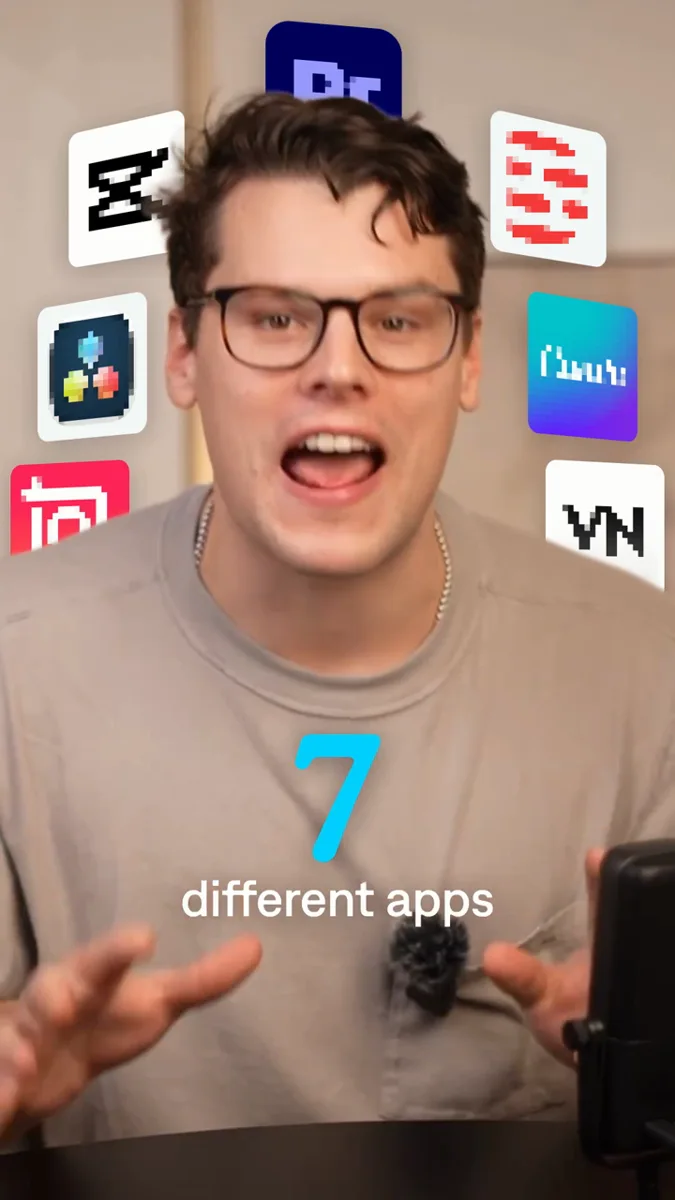
The seven-apps hook became a visual sequence around Cole. The Captions icon and title arrive when he names the app, with sound effects supporting the motion.
Creative direction
Bring in the seven app icons with a pop for each one. Reveal the Captions icon and title when Cole says its name.
Step 3
Review it. Ask for the details that matter.
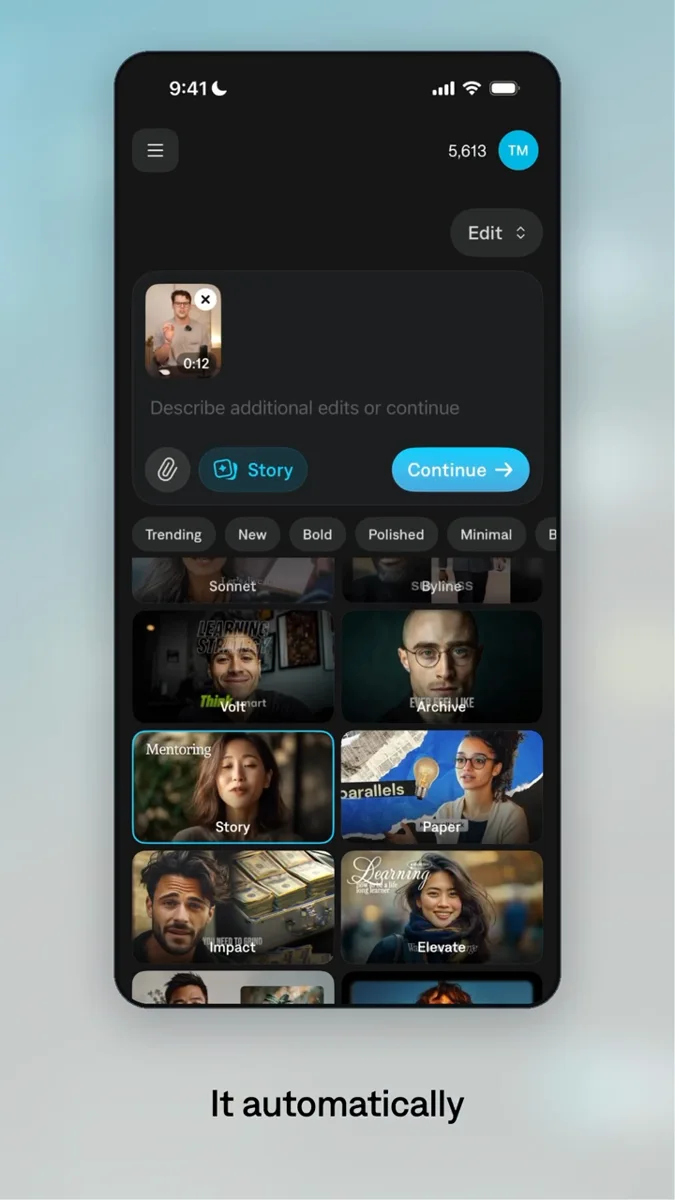
The feedback refined the pixel effect, tightened the reveal, aligned Cole’s eyeline across cuts, and made the product demonstration easier to see. The project remained editable throughout.
Creative direction
Make the app icons a little more pixelated. Keep the speaker’s eyeline aligned across cuts, and make the product demo larger.
The prompts above summarize the real editing process. This was an iterative project, not a one-prompt result.
One project. Four ways to open.
Explore the actual variants. Each keeps the product story while changing the hook and its visual treatment.
Make the format fit the placement.
The same ad was adapted for square and portrait placements. Review the framing and layout at each size.
Explore the tools behind the work.
All Strata features →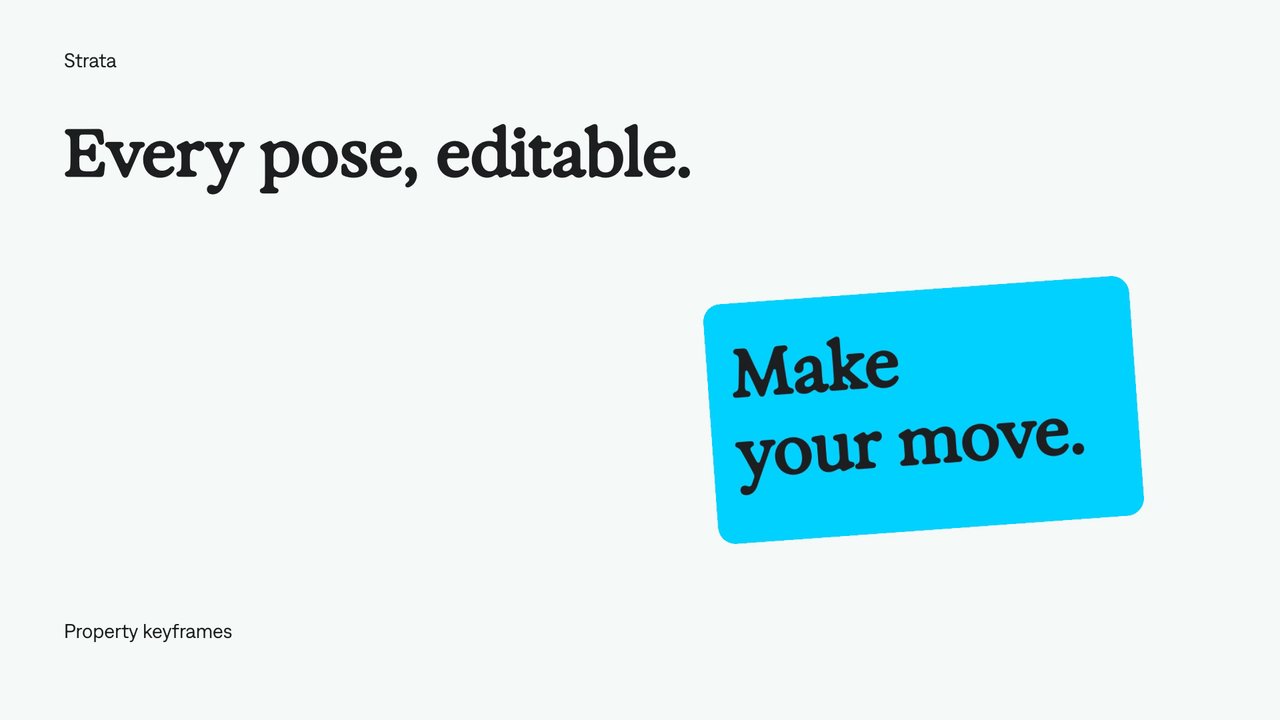
Keyframe animation
Set values at specific moments and let Strata animate between them. Your agent can refine the timing, positions, and easing while keeping the animation editable.
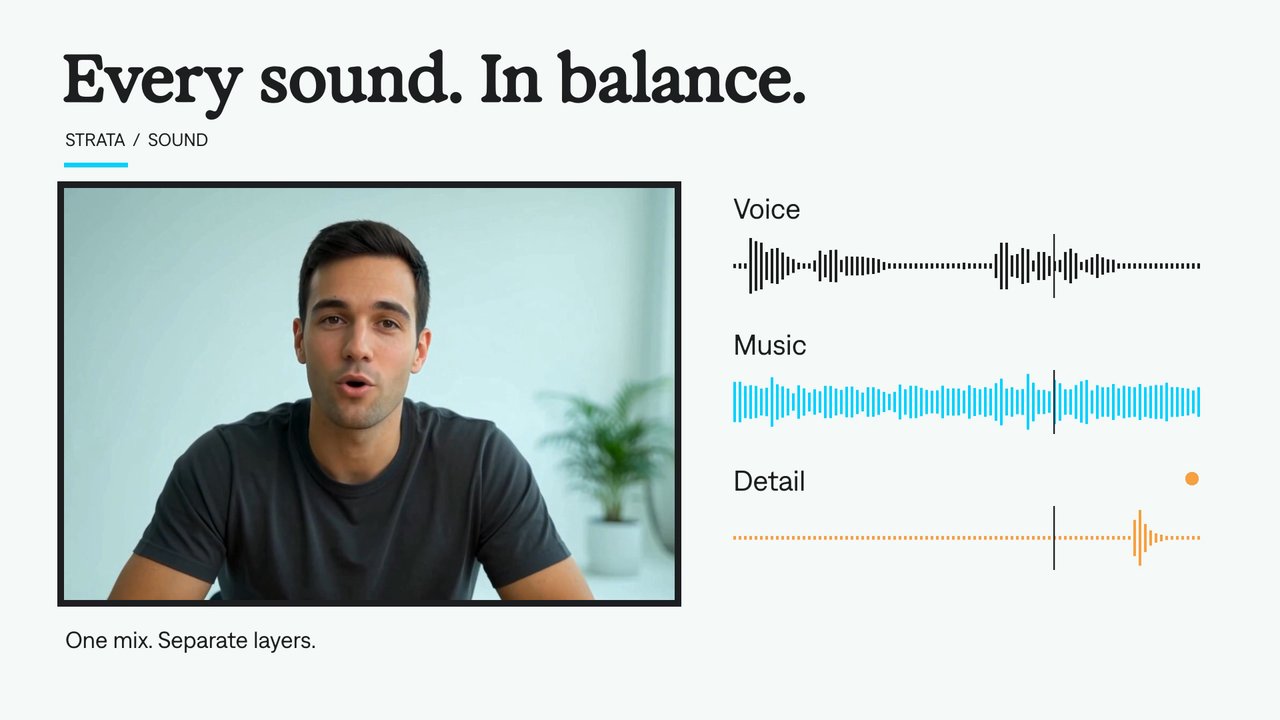
Audio layers
Place supplied audio in separate editable layers. Your agent can change when each sound plays and adjust its level alongside the video and motion graphics.
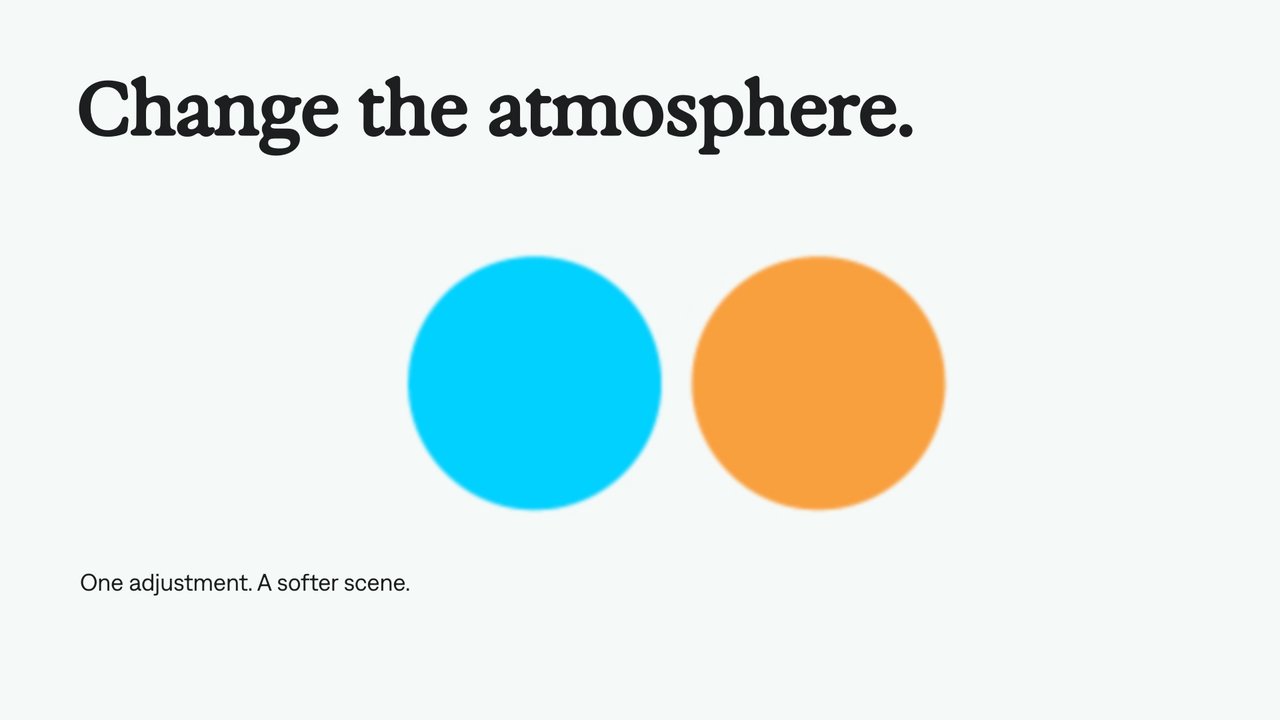
Adjustment layers
Use an adjustment layer to change the look of the layers beneath it. Keep the treatment separate from the footage, text, and graphics so your agent can revise it in one place.
A few useful details.
Was this made from one prompt?
It was an iterative edit. The creator supplied media and direction, reviewed the result, and asked for changes to the opening, graphics, sound, and framing. The prompts on this page condense that process.
What did Strata do in this ad?
Strata assembled footage, animated the opening and app reveal, composited the product demonstration, added captions, and mixed music and effects. The Captions product output shown inside the ad was supplied media.
Can I use my own footage and brand assets?
Yes. Bring your recordings, logos, screen captures, and audio. Tell the agent who the ad is for, what it should say, and where you will run it.
Can I make variants without starting over?
Yes. Keep working in the editable project. Ask for another opening, a different text treatment, or a new aspect ratio, then review the resulting layout and timing.
Do I need video editing experience?
You can direct the work through your agent in plain language. The Strata plugin provides editing guidance and examples. You still choose the message, review the result, and approve the final ad.
Where does the project render?
Strata renders locally on your Apple Silicon Mac. Install it in a supported local agent environment. No Mirage account or Adobe subscription is required; your agent’s costs are separate.
Your next video.
Made with your agent.
Professional creative tools for your AI agent. Free on your Mac.
Free on Apple Silicon Mac. Your agent’s costs are separate.
Read the setup prompt
Help me set up Strata by Mirage so you can edit videos and create motion graphics locally. Read the official setup guide at https://mirage.app/strata/install. Check whether my computer and this agent support the local plugin, and use only Mirage’s official release links. If the appropriate release link is not available, tell me rather than guessing an install command. Once Strata is ready, ask me for my footage or the video I want to make.